

Here are the step-by-step instructions for you to set up Autopay on an invoice from Paradux Media Group:
- Open Your Invoice Email: You can find the invoice you want to set up for Autopay and click the link to view it online.
- Do Not Edit the Invoice Amount: Autopay only works for the full invoice amount. If you adjust the amount, the Autopay option will disappear.
- Sign In or Create an Intuit Account: Intuit processes our payments. Use your existing Intuit login (TurboTax, Mint, etc.), or create a new account when prompted.
- Click “Set Up Autopay”: Inside the invoice, look for the option labeled “Set up autopay” and select it.

- Confirm Your Intuit Credentials: You’ll be prompted to sign in again for security. Enter your Intuit user ID and password.
- Review Your Autopay Settings: Make sure the Autopay checkbox is selected. Verify the frequency and start date match your preferences.
- Activate Autopay: When everything looks correct, click the “Autopay” button to initiate payment for the current invoice.
- Watch for the Confirmation Email: You’ll receive an email confirming that Autopay has been successfully set up for this invoice.
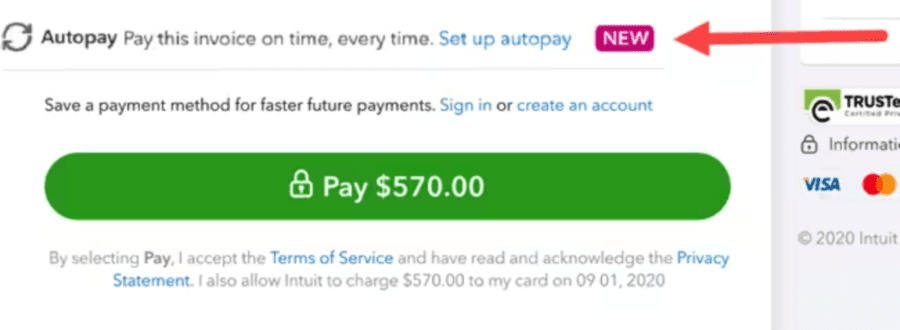

You have now successfully enabled Autopay. Future payments will be processed automatically based on the schedule you selected.